
This is the start of [wp]’s second ‘themed week’, which run every first week of the month. Last month we got started with WordPress theme development and this month we’re going to be creating an advanced theme options page.
Creating a WordPress theme options page is something that we’ve touched on before on [wp], and this week we’ll be expanding on what we covered before to create not just a theme options page, but an advanced theme options page; we’ll be creating something that lets users change layouts, hide and display different elements dotted around the theme, enter ad codes, footer text, tracking codes, Feedburner URLs, anything really:
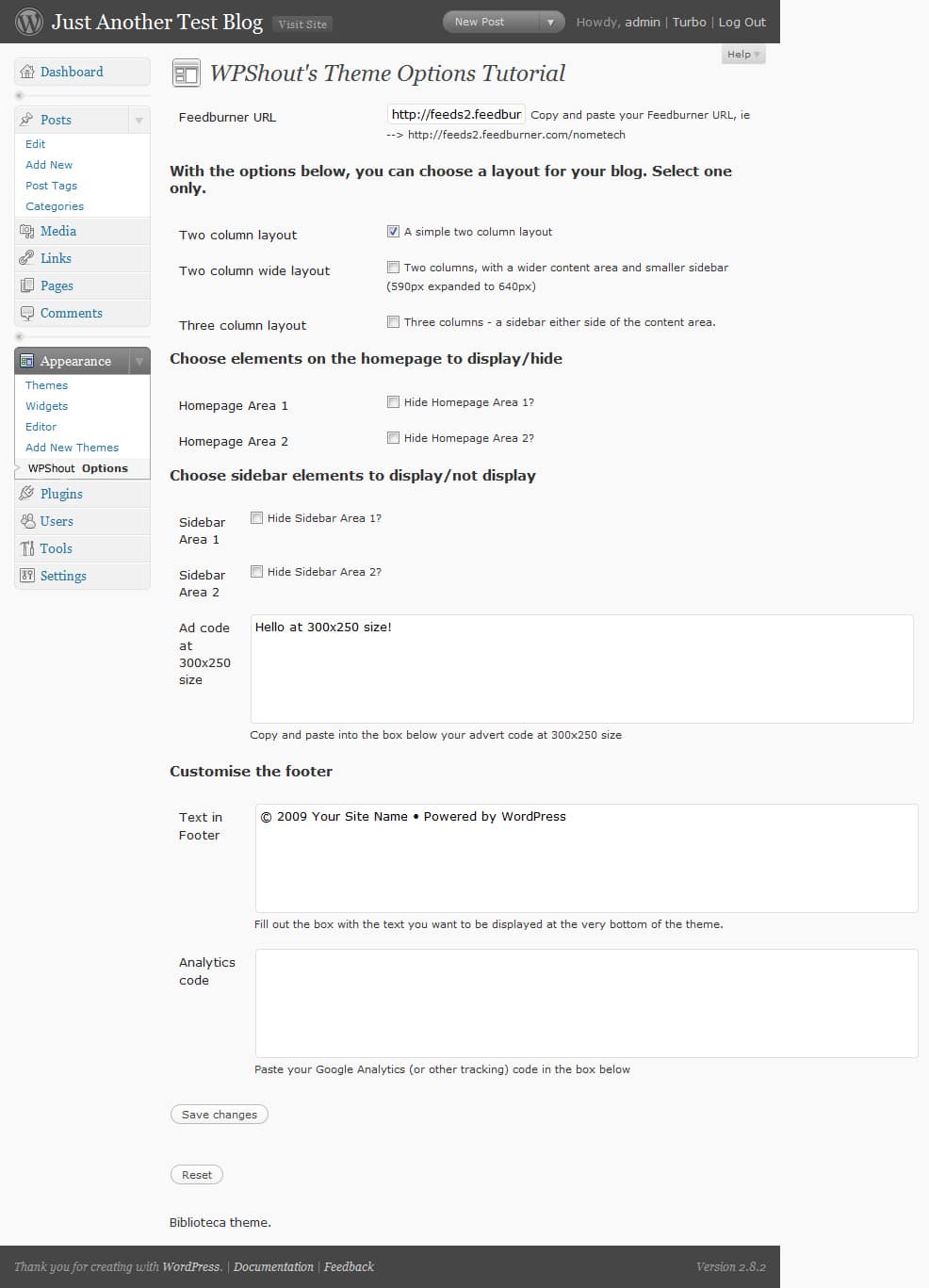
This is a screen of the options page we’ll be creating over the next couple of days – as you can see, pretty impressive! The plan for the week is as follows:
- Day 1: Introduction
- Day 2: Creating the different options
- Day 3: Styling the options page
- Day 4: Implementing the options into a theme
And that’s pretty much it. Unlike last time there won’t be a free eBook to download at the end of the week, but this is a shorter series at only four days. Throughout the week you’ll be most welcome to ask any questions etc etc through the comments, and I’d ask if you’re going to save the series to any social media site then please save this post. The code for the tutorial series comes from my WordPress theme framework, [b] (that in turn is based on Thematic’s options page).
That’s all the admin stuff out the way, so [s], save this post to Delicious and grab a cup of tea. It’s going to be an interesting week.


[…] 18. Create An Advanced Theme Options Panel in WordPress […]
[…] Creating An Advanced Options Page in WordPress Part 1, Part 2, Part 3, and Part 4 […]
I would try to follow this series!
Hi and thanks for this tutorial! Everything works well for me… but when I turn WP_DEBUG on I get the following error message in wp-admin:
Notice: Undefined index: page in C:\Documents and Settings\Daniel\My Documents\Programming\xampp\htdocs\wordpress\wp-content\themes\transparency1.1\library\functions-theme-options.php on line 29
Line 29 in my code is:
if($_GET[‘page’] == basename(__FILE__)) {
Can you help me?
[…] Create an Advanced Options Page in WordPress […]
[…] Creating An Advanced Options Page in WordPress Part 1, Part 2, Part 3, and Part 4 […]
Hello,
I’m using studiopress lifestyle classic theme. It have option page for the themes. How i can have textarea fill with color code in option page that will changed background color, wrap border color & wrap background color.
Thanks
[…] are too created from the functions.php file. WPShout has a whole tutorial written on the topic here.Language – the functions.php file lets you set up the option for multi-lingual theming.As the […]
[…] 9. Create An Advanced Options Page in WordPress […]
[…] 4. Create An Advanced Options Page in WordPress (part 1) by WPShout […]
Really interesting tutorial. I’ve got it saved.
Thanks also to @davin for the link 😉
Cheers mate.
[…] to include Advanced Options Page in a theme, glad I read Alex Denning’s article on how to Create an Advanced Options Page in WordPress. Thank you, thank you! I don’t know if I would be able to make it myself hadn’t I read […]
[…] Create An Advanced Options Page in WordPress […]
[…] page isn’t that hard (and needn’t be hard either) – recently WPShout ran “Create an Advanced Theme Options Page” in which, as you might have guessed, we created an advanced theme options page with options […]
Blatant plug; wasn’t sure whether to accept your comment or not – this tutorial is also built on Thematic, but interesting to see what you’ve done.
Hey Alex. Just seeing this comment back to me, almost a year later. I guess there’s always a fine line between plugging your own site and genuinely engaging in the conversation. Thanks for approving it at any rate- didn’t mean to be sleazy about it.
[…] People love having options. Make it easy on your users to customize or personalize your Theme by creating and including an Options page. Don’t know where to start? Check out this easy tutorial, or this more advanced one. […]
Yeah. Definitely a better option to do that or even have a dropdown. If I ever update this tutorial that’s one to include.
[…] Create An Advanced Options Page in WordPress – 1 – 2 – 3 – 4 Una guida in quattro puntate che vi insegnerà a creare una pagina di opzioni avanzata per il vostro tema WordPress. […]
If my lovely readers want it, I’ll make it happen. It does take a fair amount of time to put something like that together, so it wouldn’t be available for a couple of weeks, but as I said – if there is a demand for it, I’ll make it 🙂